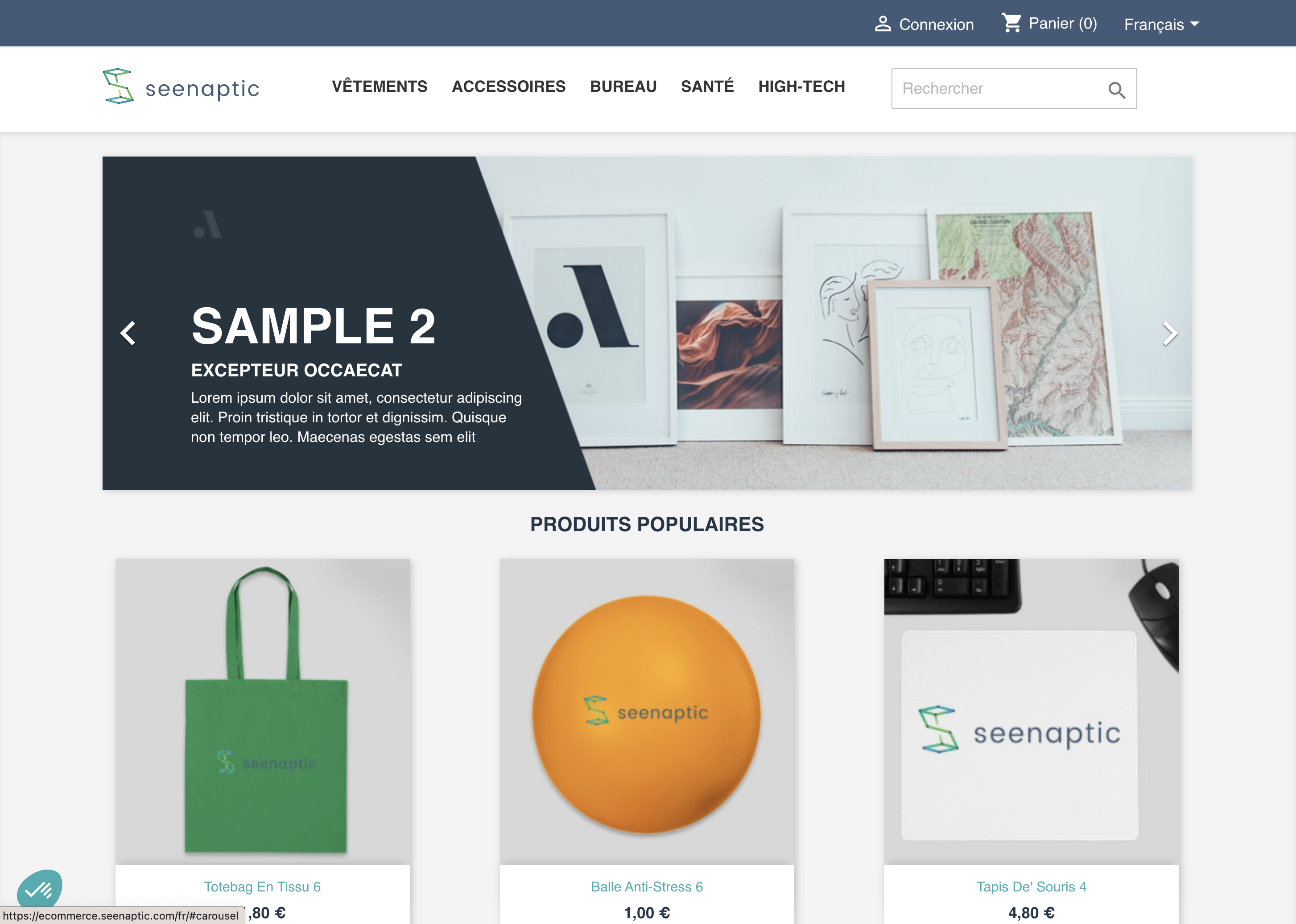
This guide accompanies you step by step in the basic configuration of a Netvigie Tracking account. We will take the demonstration site https://ecommerce.seenaptic.com/fr/ as an example.
Step 1: Managing Environments
By default, your account has an environment based on the URL provided at creation. You can add others, like a pre-production or QA environment.
- Go to Configuration > Environments.
- Click on Add an environment.
- Give it a name (e.g. "Pre-production").
- Enter the base URL of this environment.
- You can define it as the default environment if tests are to be mainly performed on it.
- Save.
Step 2: Creating Context Groups and Contexts
Contexts allow you to segment your site into logical page types.
- Create a Context Group:
- Go to Site > Context Groups.
- Click on Create a new context group (e.g. "Product", "Checkout").
- Save.
- Create a Context:
- Go to Site > Contexts.
- Click on Add a context.
- Name it (e.g. "Product Page").
- Associate it with a group (e.g. "Product").
- Provide an example URL:
https://ecommerce.seenaptic.com/fr/vetements/p/52-121-t-shirt-femme-manches-courtes.html. - Define a context rule. For a product page, a simple rule could be: Collector
{{Page pathname}}must contain/p/. (We will create the{{Page pathname}}collector in the next step). - Save.
Step 3: Creating Collectors
Collectors extract the data that will be used in your rules.
- Go to Site > Collectors.
- Click on Add a collector. Let's create three essential ones:
- DataLayer Collector:
- Name:
dataLayer GTM - Type:
DataLayer - DataLayer variable:
dataLayer(for Google Tag Manager).
- Name:
- CSS Collector for the product name:
- Name:
Product Name - Type:
CSS - Selector:
.h1(on our example site, the product name is in an<h1>tag).
- Name:
- URL Collector for the path:
- Name:
Page pathname - Type:
URL - Property:
pathname.
- Name:
- DataLayer Collector:
- For each collector, use the Verify button (by providing an example URL) to ensure it works, then Save.
Step 4: Creating Scenarios
Let's simulate an add to cart journey.
- Go to Site > Scenarios.
- Click on Add a scenario.
- Name it "Add to Cart".
- Step 1: Open the product page
- Action:
URL opening - Use the example URL of your "Product Page" context.
- Action:
- Add a pause to wait for the page to load.
- Click on the
+button and chooseAdd a pause. - Type:
Wait for a delay, Duration:2000(ms).
- Click on the
- Step 2: Click on "Add to cart"
- Click on
+andAdd a step. - Action:
Click. - CSS selector:
.add-to-cart(the button selector on our example site).
- Click on
- Use the Verify button to test the scenario, then Save.
Step 5: Configuring the DataLayer Tagging Plan
Let's verify that the page name is correct in the dataLayer on product pages.
- Go to DataLayer > Tagging Plan.
- A table appears with your contexts in columns. Click on the
+at the intersection of the "Add a parameter" row and the "Product Page" column. - A window opens. Configure the rule:
- DataLayer:
dataLayer GTM(the collector we created). - Parameter:
page.name - Rule:
must be exactly - Value:
product_detail(expected value on a product page).
- DataLayer:
- Verify the rule, then Save.
Step 6: Configuring the Tag Tagging Plan
Let's verify that your Google Analytics account ID is correct on all pages.
- Import the tag:
- Go to Tags > Tag Management.
- Click on Import a tag and search for "Google Universal Analytics (pageview)". Import it.
- Configure the rule:
- Go to Tags > Tagging Plan Settings.
- Select the "Google Universal Analytics (pageview)" tag in the dropdown menu.
- Click on the
+in the "All contexts" column. - Parameter:
tid(Tracking ID). - Rule:
must be exactly. - Value:
UA-XXXXXXXX-X(your tracking ID). - Verify and Save.
Step 7: Setting up and Launching a Crawl
Now, we are going to launch an analysis.
- Generate a version: Every configuration change must be "deployed" via a version. At the top of the interface, click on the button indicating "X unversioned changes", give a description (e.g. "Initial config") and deploy.
- Schedule the crawl:
- Go to Crawls > Scheduling.
- Click on Add a crawl configuration.
- Name it "Daily monitoring test".
- Crawl type:
Monitoring. - Program it to run (or launch it manually).
- Save.
Step 8: Analyzing Results
Once the crawl is finished:
- At the top right, select the crawl you just executed in the date/crawl selector.
- The homepage will give you an overview of scores and alerts.
- Go to Tags > Summary and DataLayer > Summary to see detailed results. Red cells indicate errors. Click on them to see:
- Which rules failed.
- On which URLs.
- What was the expected value compared to the received value.
You now have a functional basic configuration to start monitoring your tracking quality!